Single Sends
Twilio calls an email message you send to a specific audience for a specific purpose at a specific time a Single Send. Single Sends can deliver promotional offers, engagement campaigns, newsletters, announcements, legal notices, policy updates, and more.
You can schedule a Single Send or send it immediately. Unlike an Automation, a Single Send doesn't serve as part of a series of related messages designed to work in sequence.
To build templates and customize your designs, Twilio SendGrid Single Sends use either the design or code editor. These editors can create modify one of the pre-built designs or start from a blank design.
To learn more about designing email messages, see Design and Code Editor.
After creating multiple Single Sends, you can modify and delete them as needed. To find a Single Sends, you can search by name or filter the results using status and any categories.
-
The three statuses include:
Draft,Scheduled, andTriggered. -
When filtering by multiple categories, Marketing Campaigns return results matching any of the categories specified.
For example: If you filter using the categories
Newsletter,Promotion, andBOGO, Marketing Campaigns returns Single Send messages matching one or more of those categories.
To improve customer engagement, A/B testing or split testing let you test different versions of your email. You can create multiple versions of a Single Send message and deliver each to a subset of your audience. Based on the performance of each variant, you can choose a winner and send it to the rest of your contacts.
When working with A/B tests, you can:
- Clone variations of A/B tests
- Delete variations of A/B tests
- Choose the winner of an A/B test
To learn how to create and manage your A/B tests, see A/B Testing.
You can exclude up to five segments and 50 lists from a Single Send. Twilio SendGrid omits any contacts that belong to one of your excluded segments or lists from the send.
Single sends support email testing. Email testing helps check message rendering across mail clients and deliverability across spam filters.
To learn more about testing, see Email testing.
To manage your Single Sends programmatically, use the Twilio SendGrid Single Sends API.
-
Go to Marketing and select Single Sends.
-
Click Create Single Send.
-
Select a template from Your Email Designs or one of the pre-built SendGrid Email Designs. To learn more about pre-built designs, see Working with Marketing Campaigns Email Designs.
To create a template from an existing Single Send, select the action menu next to the email you'd like to reuse and select Create Template.
-
Select an editor. You can choose between the Design Editor and the Code Editor:
- Inside the Design Editor, the Settings, Tags and Build tabs allow you to design and configure your email.
- Inside the Code Editor, you can click the left Settings tab to expand the settings window, and then you can configure your email using the Settings and Tags tabs.
-
Click Save.
Next, edit the Single Send's settings.
The Single Send Settings tab allows you to configure all the essential information about your Single Send, including the sender and recipients. To completely prepare a Single Send's settings, you must define the following fields.
- From Sender: The publicly visible sender of your Single Send. This email address should be one of your verified senders. To learn more about setting up a verified sender, see sender verification documentation.
- Email Subject: The email's subject line. This field can be A/B tested.
- Recipients: The segments or lists you want to send the email to.
Warning
Single sends limit segments to ten.
To learn more about managing your contacts and building Single Sends based on engagement data, see our segmentation documentation.
- Scheduling: You can send a Single Send immediately or schedule it. If you select Specify a Date and Time, Date and Time fields appear. Set the scheduled date and time.
In addition to the settings necessary to send your messages, Single Sends provide optional settings that allow you to more precisely manage how you target your audience with each message.
You can exclude specific segments or lists of recipients from your Single Send.
- Go to Marketing and select Single Sends.
- Create a Single Send or open existing Single Send.
-
In the
Single Send Settings
tab, under
Recipients
, toggle
Exclude specific recipients
to
ON
.
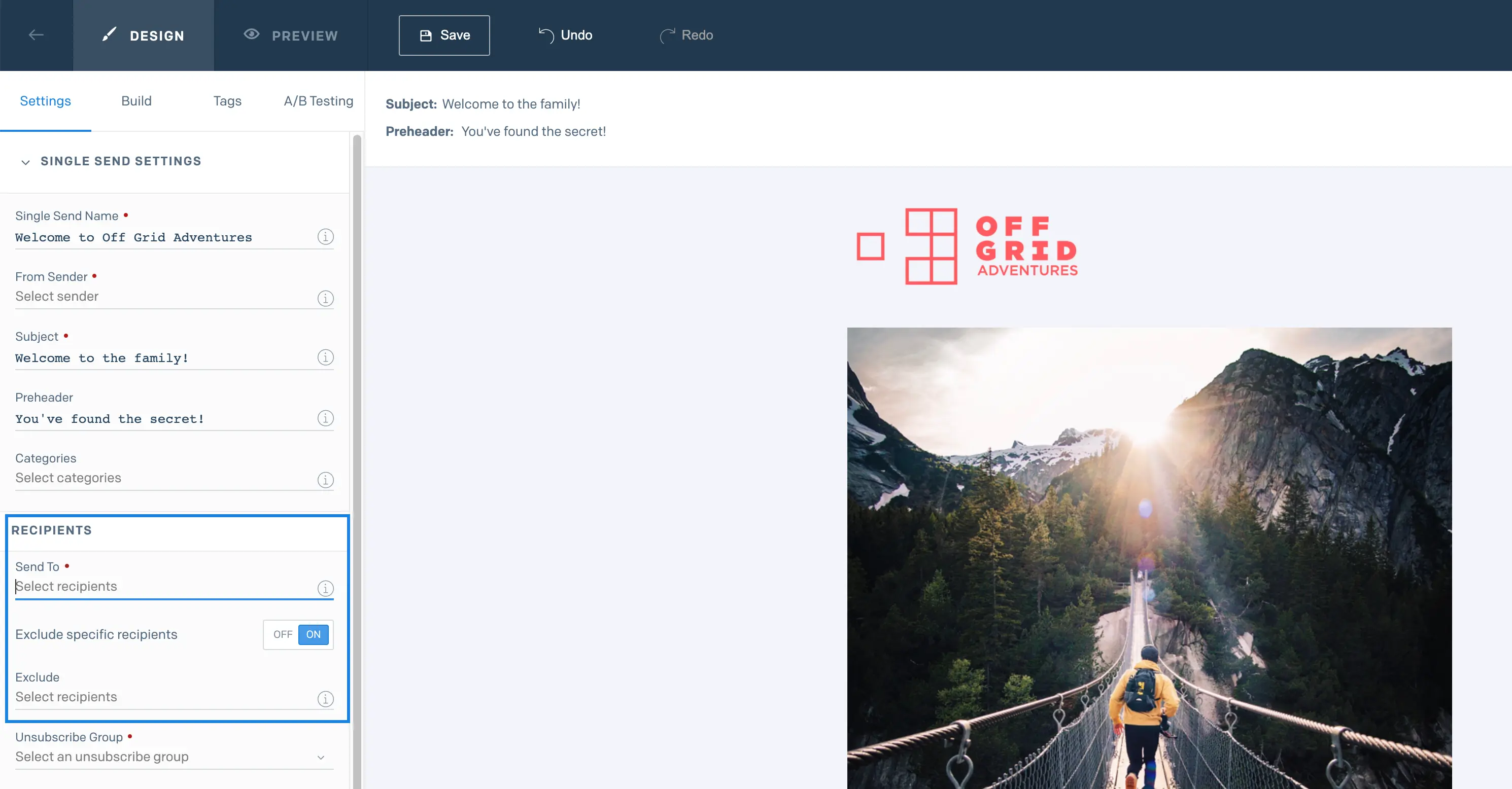
- Select the lists or segments to exclude from the Single Send. You can include as many as five segments and 50 lists.
The contacts associated with your selected lists or segments will be excluded from the Single Send.
If you have dedicated IPs, you can set up IP Pools that allow you to separate your traffic and potentially enhance your deliverability by protecting your sender reputation.
To use IP pools for Single Sends, go to Single Send Settings and select the IP pool from the IP Pool menu.
To learn more about configuring a Single Send, see the following settings: